Tools
Selecting one of the child nodes of the "Tools" node displays the tool data panel.
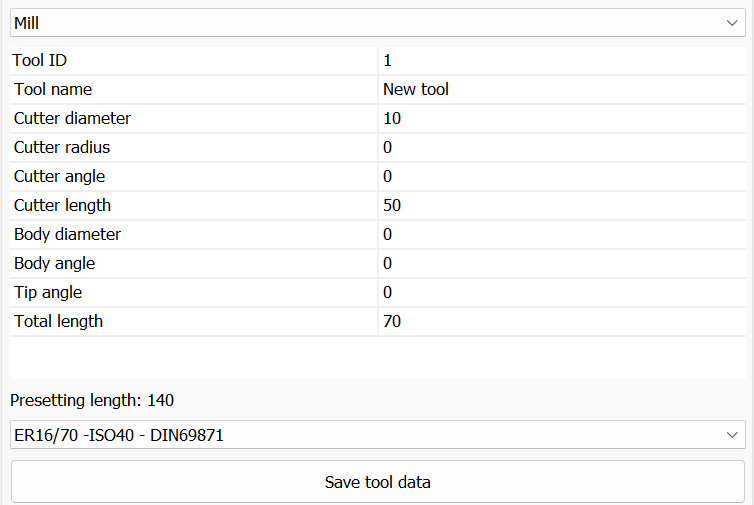
This panel contains all the data of the selected tool:
- Type
The type of the tool (drill, mill: cylindrical, toric, ball nose, tapered, lollipop...). - Neck diameter and Neck angle (Lollipop mill)
The Lollipop mill has a spherical cutter on a neck of diameter Neck diameter, smaller than the cutter diameter, which then widens conically with the half-angle Neck angle up to the shank. The libraries can be filtered by subtype; the metric tool library of the kit contains four Lollipop mills as examples. - Tool ID
The ID of the tool. - Cutter diameter, radius, angle and length
The geometry of the cutting part of the tool. - Body diameter and angle
The geometry of the tool body. - Tip angle
The tip angle of the tool. - Number of flutes
The number of cutting edges of the tool, used by Cut optimization and to draw the teeth of the cutter. When it is not set, the value estimated from the tool type and diameter is shown, and it is stored when the tool is saved. - Tool material
HSS, Carbide or Insert, chosen from the list; used by Cut optimization to propose the cutting data. When it is not set, mills from 25 mm diameter are Insert and the other tools Carbide. - Total length
The total length of the tool. - Presetting length
Calculated from the lengths of the toolholder and of the tool: the distance between the tool tip and the spindle. - Toolholder
The toolholder assigned to the tool. - Preview
A preview of the tool and of the toolholder.
While a tool is selected, a 3D preview of the tool and of the toolholder is shown to the left of the 3D view, with its own splitter, and with the same lighting and materials as the main view. The same preview is in Tool edit, Tools library and Select tool from library. The mouse works as in the 3D view: right button rotates, middle button pans, wheel zooms, double click resets the view.
When the data of a tool used by the NC file are saved, also when only its Tool ID is changed, the NC file is regenerated once if Auto update on edit is on; otherwise click Regen to apply the change.
Right-clicking the node opens a menu to manage the selected tool:
 | Save tool to library Saves the tool in the tools library. |
 | Remove tool Removes the selected tool from the project. |
Right-clicking the "Tools" node opens the following menu:
 | Add new tool Adds a new tool to the project. |
| Load tool from library Adds a tool to the project, selecting it from the tools library. |
| Save tools as default for the machine Saves the current tools as default for the active machine. |
 | Remove all tools Removes all the tools from the project. |