Parts
Selecting one of the child nodes of the "Parts" node displays the part data panel.
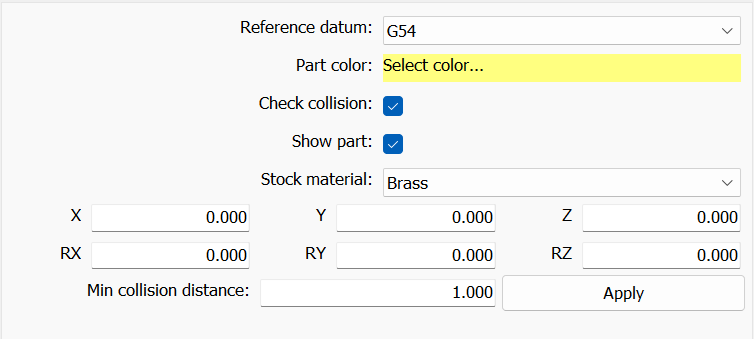
This panel contains all the data of the active part:
- Reference datum
The machine origin to which the part position refers. - Part color
The color of the part. For stocks, the material can also be chosen. - Min collision distance
The minimum distance for the collision check during the simulation. - Check collision
Whether the part is considered in the collision check. On a stock, when it is off, material is still removed but a RAPID movement inside or tangent to the stock is not reported and its surfaces machined in rapid are not shown in red. - Show part
Whether the part is shown in the 3D view. - Transparency
The transparency of the part, fixture or stock (0–90%), saved in the project. The parts that are not active are not made transparent automatically. - X, Y, Z
Translation along the X, Y and Z axes of the selected machine origin. - RX, RY, RZ
Rotation around the X, Y and Z axes of the selected machine origin.
A loaded part refers by default to the first work origin (G54).
In the project tree each part, fixture and stock shows on the right of its node the Check collision icon 
 and an eye (visible / hidden): click the icon to switch Check collision or Show part without opening the panel.
Active part in the 3D view
The active part, fixture or stock has an orange outline, which flashes when it is selected and is hidden during the simulation; the hidden part of the outline is drawn faint. Clicking a part in the 3D view selects its node in the project tree.
While the parts panel is shown, the active part has a manipulation gizmo: drag the X/Y/Z arrows to move it and the RX/RY/RZ arcs to rotate it, in the local frame of the part, with steps of 1 mm / 1 degree. The position and rotation fields are updated while dragging. The movement stops at the contact with the other visible parts that have Check collision on; a part in collision is shown red and transparent. When the collision check makes the dragging slow, SPC asks whether to disable Check collision for that part: Yes disables it and enables it again when the mouse is released after the next move, No does not ask again until the next loading.
Right-clicking the node opens a menu to manage the active part; it shows only the commands that apply to the selected object (part, fixture or stock):
 | Clone part Creates a new part identical to the selected one, of the same type (part, fixture or stock); a stock is cloned in its current state. |
 | Toggle Part <-> Fixture Turns the part into a fixture and vice versa. |
 | Toggle Part <-> Stock Turns the part into a stock and vice versa. |
 | Create box stock from part Creates a box stock from the bounding box of the part. |
 | Export stock as STL Exports the stock, in its current state, to an STL file. |
 | Reset stock Brings the stock back to its initial shape (not machined), in the same position, without loading it again. |
 | Remove part Removes the selected part from the project. |
Right-clicking the "Parts" node opens the following menu:
 | Load part Imports parts, stocks and fixtures into the project. |
 | Remove all parts Removes all the parts, stocks and fixtures from the project. |
The stock is updated during the simulation by the material removal; surfaces machined in collision or overtravel are shown in red.