NC files
Selecting one of the child nodes of the "NC files" node displays the NC file report. Clicking the active NC file only shows its report, without loading and converting the file again; selecting another NC file loads it.
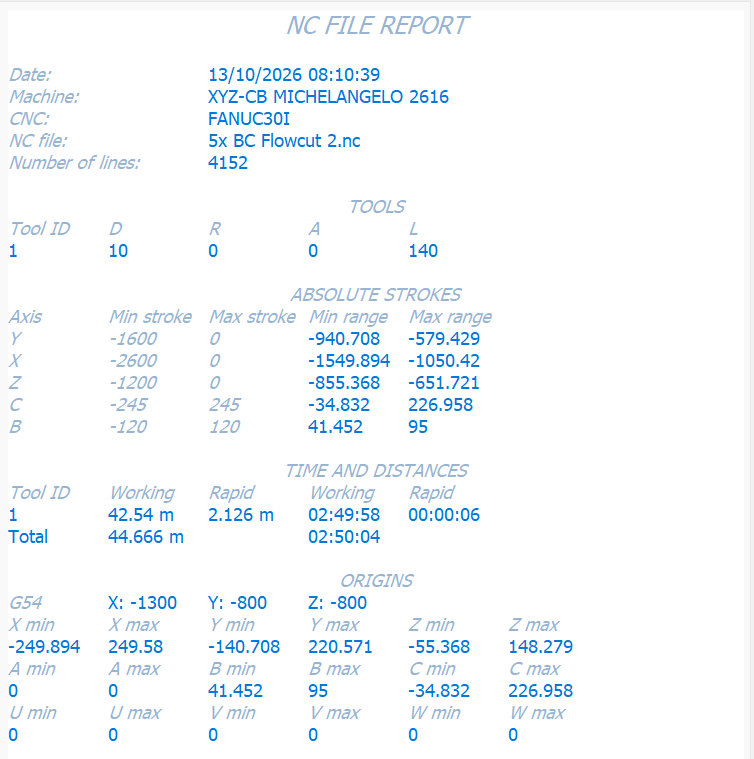
The report shows all the data related to the toolpath:
- creation date and time;
- the machine on which the NC file was run;
- the numerical control of the machine;
- the name of the NC file;
- the number of lines of the NC file;
- the list of the tools used in the NC file, with ID, diameter, radius, angle and length;
- the absolute strokes used by the toolpath, rapid movements included (the tool change with the following rapids up to the first working move and the G53/G28 movements in machine coordinates are excluded);
- times and distances in working feed and in rapid, one line per tool (a tool used more than once is added up on its own line), and the total times; times beyond 24 hours are shown in full;
- the strokes used by the toolpath relative to each origin used.
When an NC file is loaded, SPC checks whether its syntax matches the numerical control of the machine (ISO/Fanuc and derived dialects, Sinumerik, Heidenhain TNC, ECS, Selca). If most of the lines are written for another control, a warning shows the CNC of the machine, the detected syntax and the first incompatible lines. It is only a warning: the file is loaded and simulated anyway with the dialect of the machine, but the result may be wrong.
When the NC file has overtravel warnings, the report opens automatically after loading the file and after Regenerate. The report is cleared at every new conversion.
Right-clicking the node opens the following menu:
 | Print NC file report Prints the active report. |
 | Save NC file report Saves the active report. |
 | Remove NC file Removes the selected NC file from the project. If it was the active file, the new active file is loaded in the editor and the machine goes back to Home. |
Right-clicking the "NC files" node opens the following menu:
 | Load NC file Imports the NC file to be simulated. |
 | Load CL/APT file Imports a CL/APT file and converts it with the post-processor before the simulation. The tools of the CL file that are missing in the project are added automatically: taken from the tool library when a tool with the same type and geometry exists, otherwise created from the CL data with the first toolholder of the library. Tools already in the project are not changed; if their geometry differs from the CL file, a message is shown in the log. |
 | Remove all NC files Removes all the NC files from the project. |